
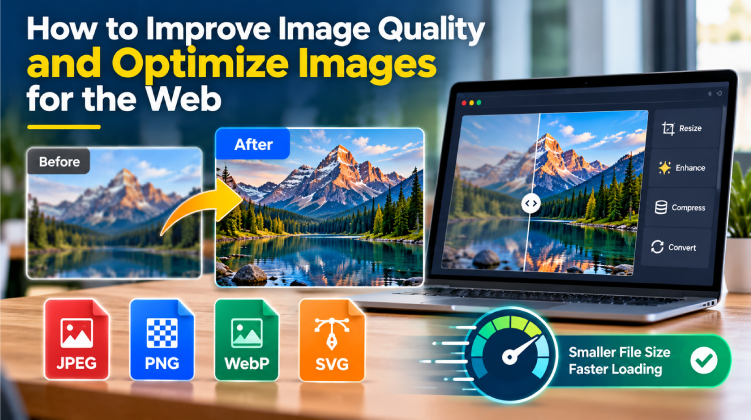
Images play an important role in how people experience websites, blogs, online stores, and social media platforms. A clear, well-sized image can make content more engaging, communicate information quickly, and help a website look professional. However, working with digital images is not always straightforward. Sometimes a picture looks too small, appears blurry when enlarged, or takes up more storage space than necessary.
Understanding how to resize, enhance, and optimize images can help you overcome these common challenges without compromising the overall appearance of your content.
Why Image Size Matters
Image size affects both visual quality and website performance. Small images may lose detail when displayed in larger spaces, while oversized files can take longer to load and consume unnecessary storage.
For website owners, finding the right balance between image dimensions, file size, and clarity is especially important. Product photos, blog illustrations, infographics, and website banners should look sharp without slowing down the browsing experience.
Choosing suitable dimensions for each platform is a useful first step. For example, a large banner may require a wider image, while a profile picture usually works better with a square format. Preparing images for their intended purpose helps maintain consistency and prevents unnecessary resizing later.
How to Increase Image Size Without Losing Too Much Quality
Increasing the dimensions of an image is known as upscaling. This process can be useful when a picture is too small for a presentation, website layout, or printed material.
However, simply stretching an image does not automatically create new details. Traditional resizing methods enlarge existing pixels, which can make edges look soft or produce a visibly pixelated result.
To achieve better results, start with the highest-resolution version of the original image available. If possible, avoid enlarging a picture multiple times because repeated resizing can reduce its clarity.
You can also experiment with different resizing methods. Some tools use interpolation to estimate the appearance of additional pixels, while AI-powered solutions attempt to reconstruct details and improve sharpness. The best choice depends on the original image, the amount of enlargement required, and how the final image will be used.
For small graphics, moderate enlargement may be sufficient. For photographs or detailed illustrations, an AI-based image enhancement tool may provide a more noticeable improvement. Always review the result at its intended display size before using it.
Choosing the Right Image Format
Different image formats serve different purposes, so selecting the right one can make a significant difference.
JPEG: JPEG is widely used for photographs and colorful images. It can produce relatively small files, making it suitable for websites and digital sharing. However, it uses lossy compression, meaning some image information is discarded.
PNG: PNG is a popular choice for logos, screenshots, interface graphics, and illustrations that require transparency. It preserves image details well, although its files can be larger than comparable JPEG images.
WebP: WebP supports both lossy and lossless compression, making it useful for web graphics and photographs. It can offer smaller file sizes while maintaining good visual quality.
SVG: SVG is a vector format commonly used for icons, logos, and illustrations. Because it relies on mathematical shapes rather than fixed pixels, it can scale to different sizes without the same quality loss associated with enlarging raster images.
Before converting a file, consider how it will be displayed and whether transparency, sharp edges, or a small file size is the priority.
Compress Images for Faster Loading
Image compression reduces the amount of data required to store or display a picture. This is particularly useful for websites that contain many photographs, screenshots, or graphics.
Large image files can increase page loading times, especially for visitors using mobile networks or devices with limited resources. Optimizing images can help create a smoother browsing experience and reduce the amount of data transferred.
If you work with PNG graphics, an online PNG compressor can help reduce file size before you upload images to a website or share them online.
When compressing images, check the result rather than focusing only on the number of kilobytes saved. A smaller file is useful, but the image should still look clear enough for its intended purpose. Keep an original copy whenever you may need to make further edits.
Practical Tips for Better Image Results
A few simple habits can make image editing easier and more consistent.
Start with a good source image. Whenever possible, use the original file instead of a screenshot or a copy that has already been compressed several times.
Resize before uploading. If an image will appear at a specific size on your website, prepare it close to those dimensions instead of uploading an unnecessarily large file.
Avoid excessive enlargement. Upscaling can improve usability, but it cannot always recover details that were never present in the original image.
Maintain the aspect ratio. Keep the original relationship between width and height unless you intentionally want to crop or reshape the image. This prevents people and objects from appearing stretched.
Check the background and transparency. PNG files are often used for transparent graphics, so make sure transparency is preserved when exporting or converting a file.
Compare different versions. View the original and edited images side by side. Pay attention to fine details, edges, colors, and any visible artifacts introduced during editing.
Common Image Editing Mistakes to Avoid
One frequent mistake is choosing the largest possible dimensions for every image. Although high resolution can be useful, oversized files are not always necessary for ordinary web content.
Another mistake is compressing an image repeatedly. Each round of lossy compression can introduce additional visual degradation, particularly when working with JPEG files. Keep the original image and perform edits from that version whenever possible.
It is also important to avoid using the wrong format. Saving a photograph as a format intended primarily for graphics may produce a larger file than necessary. Similarly, converting a transparent logo to a format that does not support transparency can introduce an unwanted background.
Finally, do not judge an image solely by its appearance when zoomed in extremely far. Consider the actual conditions in which people will view it, whether on a mobile screen, a desktop monitor, or a printed page.
Final Thoughts
Improving image quality and optimizing file size are essential skills for anyone who creates digital content. By choosing appropriate formats, resizing carefully, compressing files when necessary, and preserving original images, you can make your graphics more practical and visually appealing.
The key is to understand what each image needs. A small logo may require sharp edges and transparency, while a photograph may benefit from careful compression and balanced dimensions. With the right tools and a few consistent habits, you can prepare images that look professional, load efficiently, and work well across different platforms.