
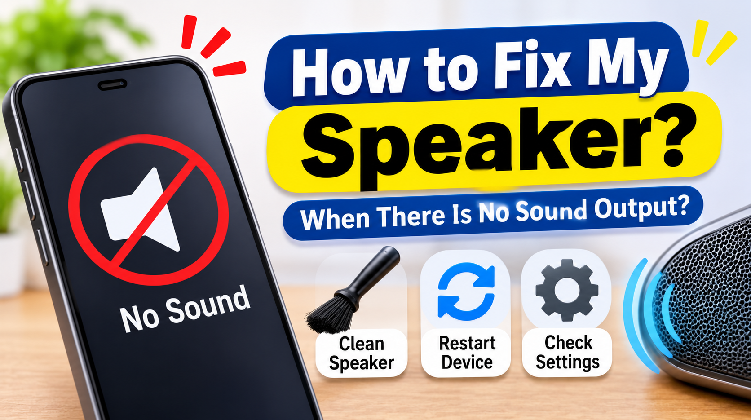
Have you ever played your favourite song or video and suddenly noticed that your speaker is not producing any sound? This problem can be frustrating, especially when you need your phone or computer for calls, entertainment, or work. Fortunately, most speaker problems have simple causes that you can check at home.
If you are searching for ways to Fix my Speaker, the first step is to find out what is stopping the sound from working. It could be a low volume setting, Bluetooth connection, blocked speaker grille, software issue, or hardware damage. In this guide, you will learn practical ways to restore sound and improve your device’s speaker performance.
Why Is My Speaker Not Producing Sound?
Before trying different solutions, it is helpful to understand why your speaker has stopped working. Some problems are related to device settings, while others happen because of dirt, moisture, or damaged components.
Common reasons include:
- Volume is muted or set too low.
- Bluetooth is connected to another device.
- Dust or dirt is blocking the speaker grille.
- An application has a sound-related issue.
- The device needs a software update.
- Water or moisture has entered the speaker.
- The speaker hardware is damaged.
Identifying the possible cause can save time and help you choose the right solution.
1. Check Your Device Volume Settings
Start with the simplest solution by checking your volume settings. Sometimes, the media volume is turned down even when the ringtone or notification volume is working properly.
Try these steps:
- Press the volume-up button several times.
- Open your device’s sound settings.
- Check the media volume and make sure it is not muted.
- Check whether Do Not Disturb mode is enabled.
- Play audio from another application.
If sound works in one application but not another, the issue may be related to that particular app.
2. Disconnect Bluetooth Devices
Your phone or computer may be sending audio to wireless headphones, earbuds, or another Bluetooth speaker instead of its built-in speakers.
To check this:
- Open your device settings.
- Select Bluetooth.
- Disconnect any connected audio devices.
- Turn Bluetooth off temporarily.
- Play a video or music file again.
If the sound returns, your device was probably using the wrong audio output.
3. Restart Your Phone or Computer
A temporary software problem can sometimes stop the speaker from working. Restarting your device can refresh its system and fix minor audio errors.
Turn off your phone or computer, wait for a few seconds, and turn it back on. Then test the speaker using different applications.
This simple step can resolve many temporary sound problems without requiring additional software.
4. Clean Your Speaker With a Speaker Cleaner
Dust, lint, and small particles can collect around speaker openings over time. This buildup may reduce sound quality, make audio quieter, or cause muffled output.
Using a Speaker Cleaner can help remove loose dust and improve sound clarity. Some speaker-cleaning tools play specially designed sound frequencies that create vibrations to help push water droplets or loose particles away from the speaker opening.
For safe cleaning:
- Keep your device at a moderate volume.
- Use a dedicated speaker-cleaning sound tool.
- Hold your device with its speaker opening facing downward when appropriate.
- Use a soft, dry brush to remove visible dust.
- Avoid inserting sharp objects into the speaker grille.
- Never pour water or cleaning liquid into the speaker.
Remember that sound-based cleaning tools cannot repair physical damage or remove every type of blockage.
5. Check for Water or Moisture
Water exposure is another common reason for muffled or missing sound. Even a small amount of moisture can affect speaker performance.
If your device gets wet, follow these precautions:
- Disconnect charging cables.
- Turn off the device if it may have water inside.
- Wipe its exterior with a soft, dry cloth.
- Keep the speaker opening facing downward.
- Allow the device to dry naturally in a well-ventilated area.
Avoid using a hairdryer, placing your phone in direct heat, or inserting objects into the speaker. If the sound does not return after drying, consider professional inspection.
6. Update Your Device Software
Outdated software or audio driver problems can sometimes affect sound output. Check whether your phone or computer has a pending system update.
For smartphones, open Settings and look for Software Update. On Windows computers, check Windows Update and Device Manager for audio driver updates.
Install available updates, restart your device, and test the sound again.
7. Test Your Speaker With Different Audio Sources
Sometimes, the problem is not with the speaker itself but with the audio file or application.
Try playing:
- A song from another music application.
- A video from a different platform.
- A recorded voice message.
- A ringtone or notification sound.
- Audio through wired or wireless headphones.
If headphones work but the built-in speaker does not, the issue may involve the speaker hardware or audio output settings.
When Should You Get Professional Speaker Repair?
If none of these solutions works, your device may have a hardware problem. A damaged speaker, loose internal connection, or faulty audio component may require professional repair.
Consider getting expert help when:
- Your speaker produces no sound after trying basic fixes.
- Audio is heavily distorted or crackling.
- The speaker stopped working after being dropped.
- Water exposure caused lasting sound problems.
- The device repeatedly switches between audio outputs.
Avoid opening your device unless you have the right tools and repair experience.
Conclusion
A speaker that suddenly stops producing sound does not always mean it is permanently damaged. Checking volume settings, disconnecting Bluetooth devices, restarting your phone, updating software, and removing dust can solve many common audio problems.
If you are still looking for ways to Fix my Speaker, try these solutions one at a time to identify the cause. A reliable Speaker Cleaner can also help remove loose dust and moisture, while professional repair may be necessary for damaged hardware. With proper care and regular cleaning, you can keep your device speakers working clearly for longer.