
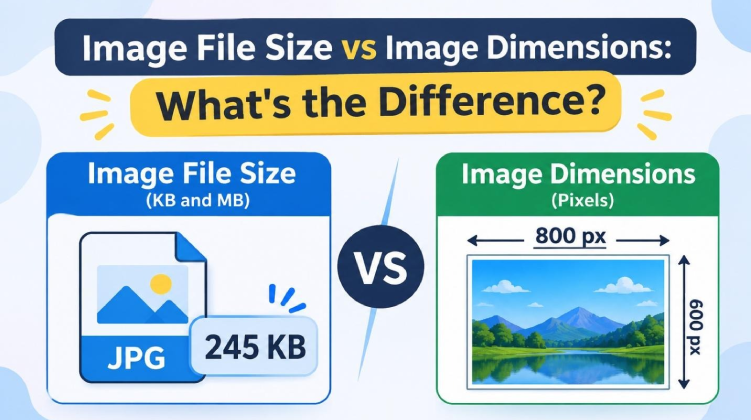
In this blog post we discuss about image file size and image dimensions are two different things that describe an image.
File size give information about how much storage space an image occupies, while dimensions describe image width and height in pixels.
For example, a 1920 × 1080 image have a file size 400 KB, 1 MB or several megabytes. It’s depending on image format, compression and image content. That means two images with same dimensions can have very different file sizes.
H2: What Is Image File Size (KB and MB)?
Image file size describe the amount of digital storage space required to store an image. It is commonly measured in kilobytes (KB) and megabytes (MB).
Common image file size units:
- Bytes (B): A basic unit in digital information.
- Kilobytes (KB): Commonly used in smaller image files, such as icons and graphics.
- Megabytes (MB): Often used for photographs, high resolution images and larger graphics.
- Gigabytes (GB): Used in collections of large image files size.
H2: What Are Image Dimensions (Pixels)?
Image dimensions describe width and height in pixels. They are usually written in two numbers separated by a × sign.
For example:
- 500 × 500 pixels: A square image.
- 800 × 600 pixels: A landscape image.
- 1080 × 1920 pixels: A portrait image.
- 1920 × 1080 pixels: A widescreen image.
Example:
A 1920 × 1080 image contains:
1920 × 1080 = 2,073,600 pixels
That is approximately 2.07 megapixels.
H2: Image File Size vs Image Dimensions
| Comparison | Image File Size | Image Dimensions |
| Meaning | Storage space occupied by an image | Width and height in pixels |
| Measurement | KB, MB, or GB | Pixels |
| Main purpose | Understanding storage and transfer requirements | Understanding image size and pixel detail |
| Affected by | Format, compression, color depth, and image content | Resizing, cropping, and original image resolution |
| Example | 450 KB | 1920 × 1080 px |
H2: How to Check an Image’s File Size and Dimensions
You can check an image file size and dimensions using your computer built-in file information or an online image information tool.
On Windows:
- Locate the image in File Explorer.
- Right-click the image and select Properties.
- Open the General tab to view its file size.
- Select the Details tab to find its dimensions, such as width and height in pixels.
On macOS:
- Locate the image in Finder.
- Right-click the file and select Get Info.
- Check the file size in the General section.
- Open the image in Preview and select Tools > Show Inspector to view its image dimensions.
Using VidhyaGen online tools:
You can also use VidhyaGen’s image information tools to check these properties without manually searching through file details.
- Image Size Checker: Use the VidhyaGen Image Size Checker to inspect an image’s file size.
- Image Resolution Checker: Use the VidhyaGen Image Resolution Checker to check its pixel dimensions and resolution information.